
Event FAQ
Classes & Events
About Events
From time to time KMVU3A or related organisations hold special events that are open to all members and sometimes non members.
These are advertised on the Current Events page of this website. Ways to book, pay and event information can be found in the event description and may vary from event to event.
Many KMVU3A events can be booked online on our website (as below).
- When booking online you can choose to pay:
- at the same time as booking with a secure credit / debit card
- or LATER by direct deposit into our account
How to book KMVU3A events online (step by step instructions):
The steps to book vary slightly depending on the page/ method you use to book - use the information below as a guide.
Options to book online:
- Use this website: Click to open the Current Events page. (The page will open in a new tab - switch between pages to follow the instructions.)
- Use the booking link sent to you in an email and follow the prompts
- Log into the Member Portal - use this option if you don't have an email or access to your email at the time of booking.
- See bottom of this page for more instructions on how to book in Member portal.
Booking online using an event link on this website or in an email:
Look for and click on the name of the event you want to book on the Current Events page. If the name is a link a new page will open.
- If the name of the event is NOT a link- online booking is not available. Other ways to book will be shown

3. Click Yes or No to indicate if you are Member or Not
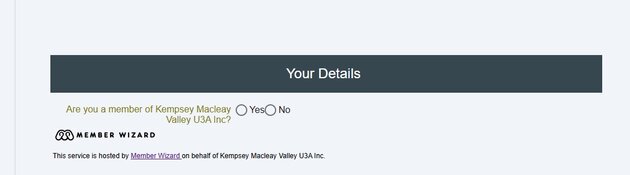
- Click NO - if you are not a member - fill in some brief details about yourself, including your email.
- Follow any prompts to complete the booking
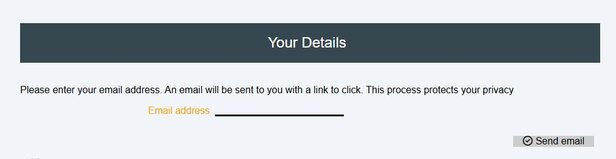
- Click YES - if you are a member - enter the EMAIL address you have registered with KMVU3A
- An email will be sent to you to complete the booking. YOU MUST OPEN this email
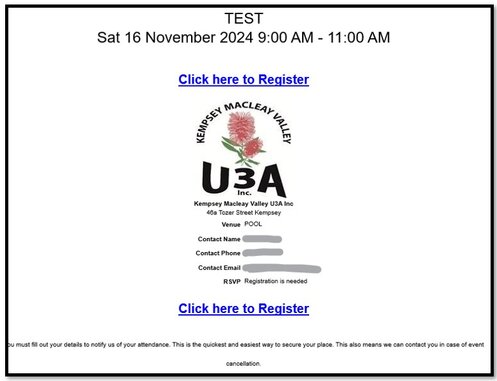
4. Open the email and click - Click Here to Register. You will be taken back to a webpage to complete the booking.5. Enter the required information eg:
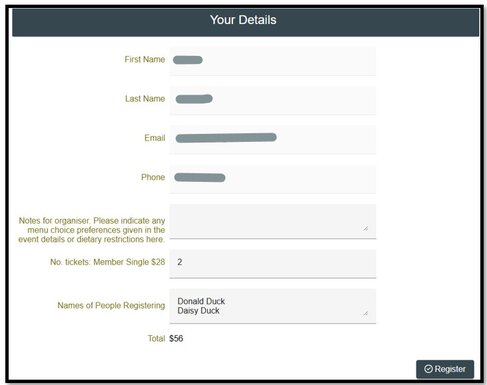
- Information you want to let the organiser know about eg dietary requirements
- How many tickets you want to book
- If you only book 1 ticket it will assume it is for you (but you could type an alternate name in the Notes area if you are booking for someone else)
- If you book 2 or more tickets, a line will appear requiring you to type in the names of the people each ticket is for
- Please type the first and surname of each person you are booking for, so we have an accurate record of attendees
6. Click on REGISTER7. Scroll down and select to pay by secure Credit Card or Direct Deposit and follow the prompts.
- You will be sent a confirmation email.
- If you pay online you will be emailed a receipt straight away.
- If you select to pay by direct deposit you will be emailed confirmation and an invoice with details of the bank account.
- You MUST put your name of person who made the booking and event name in the REFERENCE or DESCRIPTION section provided in your deposit window. (eg Tom Smith Cruise)
- We need to know who and what the deposit is for. Deposits without details cannot be processed.
- The email will also contain a link to pay online later if desired
- You will be emailed a receipt from us when the money is receipted by the U3A Treasurer
7. Enjoy the event!To add additional tickets:If you have already registered but want to book additional tickets or add notes for the organiser you can do this as follows:
- Repeat steps 1 - 4 above
- On the page that opens you will see the number of tickets you have already booked
- To add notes only: Type in the notes. Do not alter the number of tickets booked
- To add Tickets: Type in the new TOTAL of tickets you want to book (eg if you have already booked 1 ticket and want 1 more - Type 2.)
- Select how you will pay for these additional tickets
- NOTE: If you haven't paid for the original tickets - you will need to pay for these as well
- Click Register
- You will be emailed confirmation etc as above
- Simply close the page if you don't want to add or alter anything
How to book using the Member Portal: (existing members only)Use this method if you don't have an email registered with KMVU3A or don't have access to your email at the time of booking.Events will not appear in the Member Portal if online booking is not available.Log into the Member Portal > Click on Classes and Events > click on the required event > scroll down and enter the required number of tickets etc as in step 5 above > Click Register > Select a payment option. All done.Updated: 05-05-2025