

Enrol Online Help
Classes & Events
Enrol online: Step by step instructions
Below are step by step instructions with pictures showing how to view all classes and enrol online.
How to sort and view class information:
- The page will open in a new tab so you can switch between the Current Classes page and these instructions
- Scroll down to see the class list
When you first view the list, it will be organised alphabetically by class name.
- Click the Class Name for class details, vacancies, dates, requirements etc
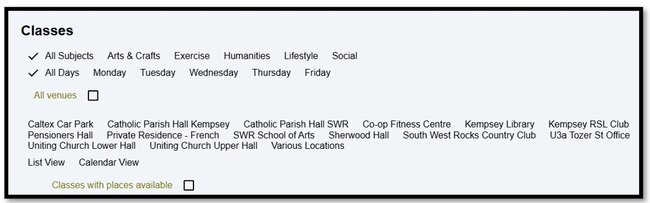
You can filter the classes by Subject, Day, Venue or Classes with places available by clicking on the relevant buttons at the top of the class list. (shown below).
- Click back on All Subjects or All Days to show all classes alphabetically.
- Untick the box next to All venues to see a list of venues.
- Click on a venue to see only classes at that venue.
- Tick All Venues to return to the list of classes at all venues
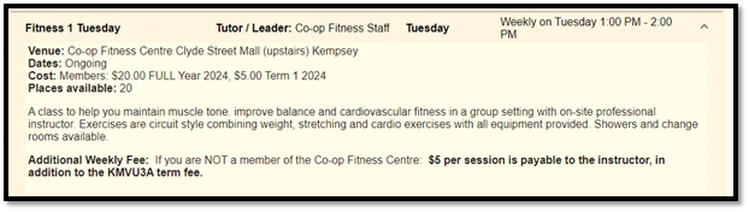
Click on a class name to reveal the class description and details eg Venue, Dates, Cost, Tutor contact details, Class requirements and the number of places available. Click again on the class name to close the details.
How to enrol online:
The steps below are a guide. The process may update from time to time or be different on your device, so follow the prompts on the pages that appear.
- Open the Current Classes page. Scroll down to see the list of current classes
- Click on the required class name
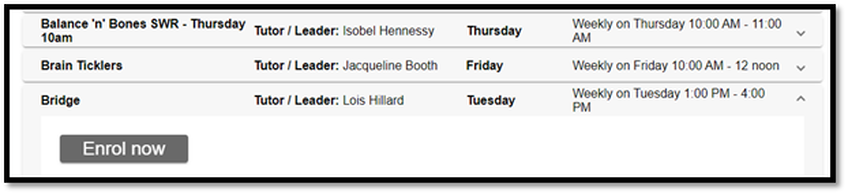
- Click the Enrol Now button (only available if there is a vacancy)
- Click the Join Waiting List button (available if there are no vacancies). You will not be charged if you add yourself to a Waiting list, but will be notified (by email or phone) and asked to pay if a vacancy occurs
- For information on classes that don't allow online enrolment: Phone the class tutor | phone 0407 229 600 | or email us at

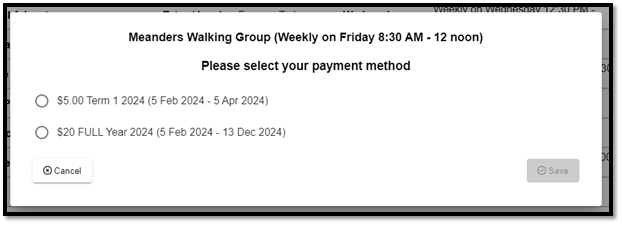
If the class has several options for payment a pop up will appear displaying the options. Many classes allow you to enrol for the full year (4 terms) or a semester (2 terms) and sometimes a day or one term. If there is only one payment option this screen will not appear.
Note: There are no partial refunds for classes not attended if you select to enrol for the full or remaining terms of the year.
Note: There are no partial refunds for classes not attended if you select to enrol for the full or remaining terms of the year.
- Click your preferred payment option then Save. If the SAVE button disappears click where it was!
- The class will be added to the Checkout / Shopping Trolley as shown below. Click OK
- REPEAT for all required classes
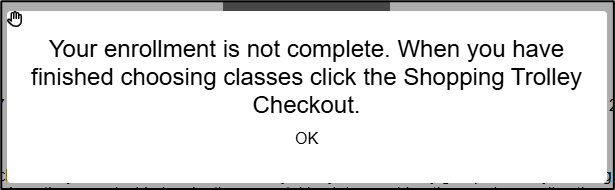
- Click the CHECKOUT icon towards the top of the page
- Click where it was if it disappears
- Or if the Check out / Shopping Trolley button does NOT appear - Click on the Enrol Now button for you class again
- A page similar to that below will appear listing the classes you have enrolled in
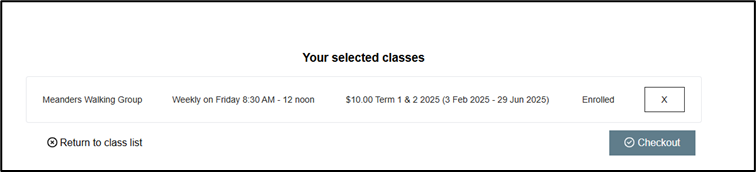
- If this list is not correct
- Click the X to remove a class
- Or Click - Return to class list - to add another class
- When the list is correct
- Click CHECKOUT to progress to the payment options
- A screen will then appear asking if you are a member
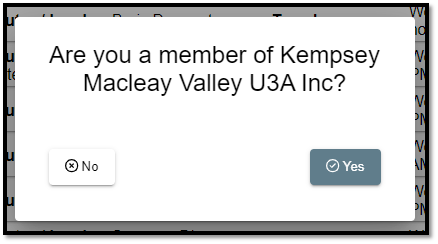
Click No if you are not yet a member

- A membership form will appear
- Fill in the details. The fields in Orange are mandatory.
- While not mandatory it is important that you include your emergency contact information
- Tick to confirm that the information is correct and to Accept the Terms and Conditions
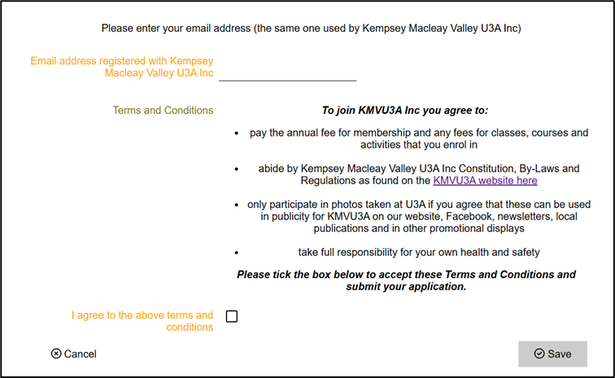
Click Yes if you are member or have been a member at any time since 2023. The page below will appear:
- Enter the email address registered with KMVU3A Inc.
- TICK to agree to the Terms and Conditions > Save
- NOTE: If you share an email with another member you will be asked which member is enrolling
- You must repeat this entire process to enrol the other member if required
Pay:
- A page will appear showing you the options to pay
- You will also receive an email with this information allowing you to pay at a later time
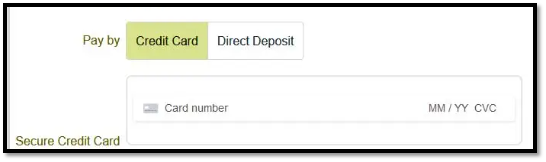
- Click on Credit Card to pay online with a credit or debit card using Stripe a secure online payment system
- Follow the prompts to complete the payment
- You will be emailed a receipt
- Click Direct Deposit to pay offline by depositing into our bank account.
- The screen that appears will reveal the bank details and a reference to use - VERY important
- Please also include with the reference - an ID for each class you are enrolling in eg TT for table tennis, GDG for Gardening etc
- Print, photograph or write down the details to take to your bank or to Coastline Bank to pay
- If you are paying for someone else please include their details
- Coastline bank members need to use Pay Someone NOT Transfer to ensure their name will be against the deposit
- If not a Coastline bank member - please make sure you add the reference /which includes your name when making a deposit
Updated: 05-05-2025